How to Change WhatsApp Number Without Losing Chats in 2026
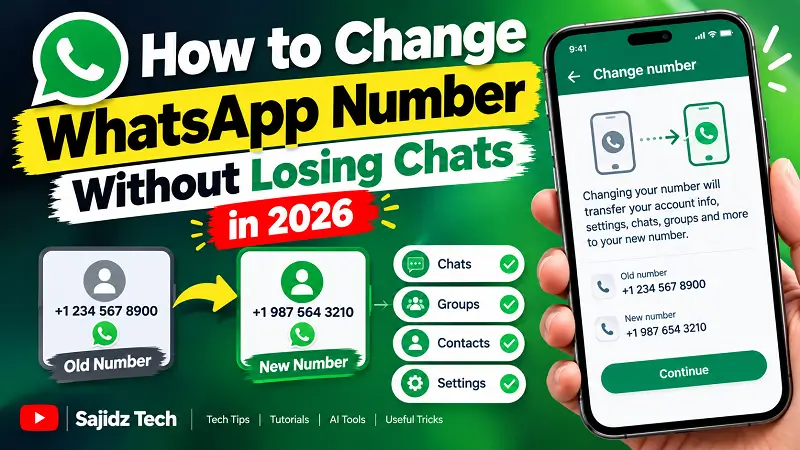
How to Change WhatsApp Number Without Losing Chats in 2026
-
14Views
-
7th September, 2026
Changing your phone number can be stressful if you have years of important WhatsApp conversations, groups, contacts, photos, and other information. Fortunately, WhatsApp has a built-in Change Number feature that allows you to move your WhatsApp account to a new phone number while keeping your account information and chats.
In this guide, you’ll learn how to change WhatsApp number without losing chats in 2026.
Watch the Video Tutorial
If you prefer a visual step-by-step guide, watch our complete tutorial:
Watch the WhatsApp number change tutorial on YouTube
Can You Change Your WhatsApp Number Without Losing Chats?
Yes. WhatsApp’s official Change Number feature is designed to transfer your WhatsApp account information from your old number to your new number.
According to WhatsApp, changing your number transfers information such as your profile photo, username, display name, privacy settings, WhatsApp contacts, individual chats, and group chats to your new number.
However, you need to follow the correct process. Simply registering a new number on another phone is not the same as using WhatsApp’s Change Number feature.
What You Need Before Changing Your Number
Before you start, make sure:
Your old phone number is currently registered with WhatsApp.
Your new phone number can receive SMS messages or phone calls.
Your new SIM/mobile connection is active.
You can access your WhatsApp account on your current phone.
WhatsApp recommends making sure the new number can receive the verification code before starting the process.
How to Change WhatsApp Number Without Losing Chats
Follow these steps.
Step 1: Open WhatsApp
Open WhatsApp on your primary phone where your existing account and chats are available.
Step 2: Go to Settings
Open WhatsApp Settings.
On Android, you can access Settings from the three-dot menu. On iPhone, tap the Settings option.
Step 3: Select Account
Go to:
Settings → Account → Change Number
Then tap Next.
WhatsApp’s official instructions confirm that the number change needs to be performed on your primary device, not WhatsApp Web or WhatsApp Desktop.
Step 4: Enter Your Old and New Numbers
Enter your existing WhatsApp number in the first field.
Then enter your new phone number in the second field.
Make sure both numbers are entered using the correct international format.
Step 5: Choose Whether to Notify Your Contacts
WhatsApp gives you an option to notify your contacts about your new number.
You can choose from options such as:
All contacts
Contacts you have chats with
Custom contacts
Your group chats are automatically notified when you change your number, even if you don’t enable the contact notification option.
Step 6: Verify Your New Number
Tap Next and follow the instructions to register and verify your new phone number.
Once verification is completed, WhatsApp transfers your account information to the new number.
What Happens to Your WhatsApp Chats?
When you use the official Change Number feature correctly, WhatsApp transfers your individual and group chats along with other account information.
Your profile information and settings are also transferred to the new number.
This is why you should use Change Number instead of simply creating a new WhatsApp account with your new number.
What If You Are Also Changing Your Phone?
If you’re changing both your phone number and your phone, there is an important extra step.
WhatsApp recommends changing the number on your old phone first. After changing the number, create a new backup using the new number and then set up WhatsApp on your new phone.
WhatsApp specifically warns that if you register the new number on a new phone without first completing the number-change process, you can lose access to your previous chat history.
For more information about moving WhatsApp to a new device, see our related guides and WhatsApp’s official Help Center.
Important: Create a New Backup
After changing your WhatsApp number, it is recommended that you create a new chat backup.
WhatsApp explains that cloud backups are linked to the phone number used when the backup was created. Therefore, creating a new backup after changing your number helps ensure you have a valid backup associated with the new number.
Can You Change Your Number from WhatsApp Web?
No. WhatsApp currently requires you to change your phone number from your primary mobile device.
You cannot perform the number-change process directly through WhatsApp Web or WhatsApp Desktop.
Final Thoughts
If you’re worried about losing your WhatsApp conversations after getting a new phone number, don’t simply register a new WhatsApp account.
Instead, use WhatsApp’s built-in Change Number feature. It allows you to transfer your account information, individual chats, group chats, contacts, and settings to your new number.
If you’re also moving to a new phone, remember to change the number on your old phone first and create a new backup before setting up WhatsApp on the new device.
For another WhatsApp tutorial, check out our guide on how to create a WhatsApp Channel in 2026. You can also visit the Sajidz Tech homepage for more technology tutorials and practical guides.
Tags:
change phone number on whatsapp change whatsapp number without losing chats how to change phone number on whatsapp how to change whatsapp number how to change whatsapp number without losing chats keep whatsapp chats after changing number Mobile Tips sajid tech sajidz tech whatsapp WhatsApp 2026 WhatsApp Account whatsapp change number whatsapp change phone number whatsapp chat transfer WhatsApp Chats whatsapp chats after changing number WhatsApp Features whatsapp features 2026 whatsapp groups after changing number WhatsApp Number Change whatsapp number change 2026 whatsapp tips whatsapp tricks whatsapp tutorialleave a comment
Comments(2)
Search here
Categories
- Adobe (2)
- AI (2)
- Amazon (1)
- Android (9)
- Apps (3)
- Blockchain (1)
- Blog Template (1)
- Business (5)
- ChatGPT (2)
- eCommerce (1)
- Economy (1)
- Facebook (3)
- Freelancing (1)
- Garments Template (1)
- Google (3)
- Google Adsense (1)
- Google Map (2)
- Grok (1)
- Health (1)
- Instagram (2)
- jobs (1)
- Landing page (2)
- Location track (1)
- Messenger (4)
- Mobile review (6)
- Samsung (1)
- Smartphones (1)
- Social Media (3)
- Tech News (1)
- Tread (1)
- Uncategorized (2)
- viber (1)
- Web Development (4)
- WhatsApp (17)
- Windows (2)
- Wordpress (3)
- Xiaomi (1)
- YouTube (1)
Latest posts
- Eyer View Counter and Stats: Lightweight WordPress Post Analytics Plugin
- How to Easily Remove Unwanted Objects from Photos with AI in 2026 : The latest way you don’t know
- WhatsApp Custom Emoji Reactions | How to Change Them in 2026 : An ultimate guide you be excited to use
- WhatsApp Plus: How to Change App Icon & Theme in 2026 : You be excited to use it
- New WhatsApp Chat Themes in 2026: 5 Exciting Styles You’ll Love 🎨
Latest Posts
-

Eyer View Counter and Stats:...
By #Sajid Hasan On 14, Oct, 2026 -

How to Easily Remove Unwanted...
By #Sajid Hasan On 05, Oct, 2026 -

WhatsApp Custom Emoji Reactions |...
By #Sajid Hasan On 26, Sep, 2026 -

WhatsApp Plus: How to Change...
By #Sajid Hasan On 22, Sep, 2026 -

New WhatsApp Chat Themes in...
By #Sajid Hasan On 21, Sep, 2026
How to Transcribe WhatsApp Voice Messages Into Text in 2026: The Ultimate Easy Guide
September 14, 2026
[…] How to Change WhatsApp Number Without Losing Chats […]
How to Hide Your Phone Number on WhatsApp in 2026: Ultimate Guide - Sajidz Tech
September 19, 2026
[…] If you actually need to change your WhatsApp phone number while keeping your chats, you can read our detailed guide: How to Change WhatsApp Number Without Losing Chats. […]