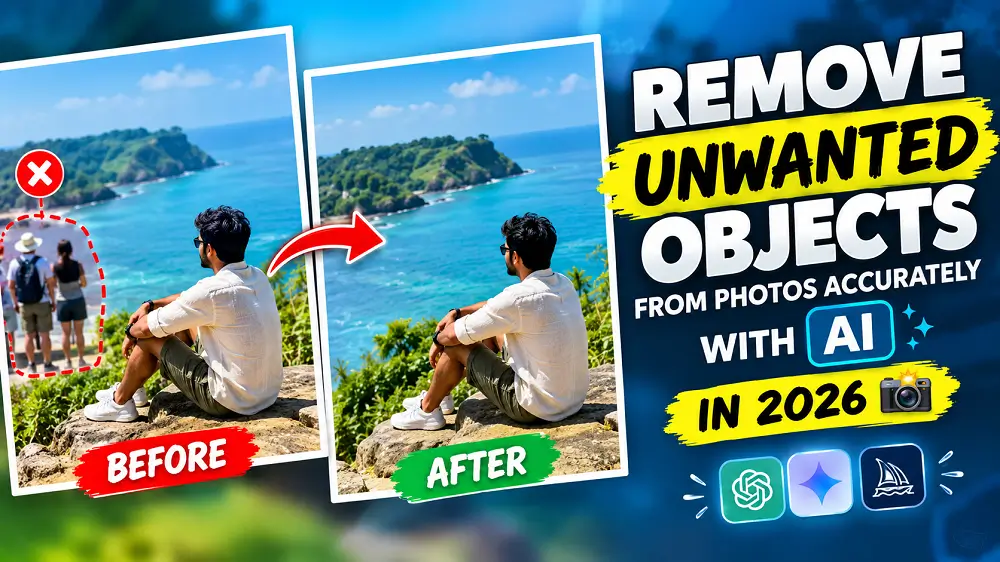
What Does AI Object Removal Do?
AI object removal is an image-editing technique that uses artificial intelligence to identify an unwanted object and reconstruct the area where that object was located. Instead of simply blurring or cropping the unwanted part, an AI image editor can generate replacement details based on the surrounding scene by remove objects from photos.
For example, you could have a beautiful travel photo with a person standing in the background. Rather than cropping the image and losing part of the scenery, you can ask an AI editor to remove the person while keeping the rest of the photograph as close to the original as possible.
Modern AI image-editing systems can understand objects, backgrounds, spatial relationships, and surrounding details, making natural-language editing possible without manually selecting every pixel. :contentReference[oaicite:1]{index=1}
Why Remove Unwanted Objects from Photos with AI?
There are many situations where AI photo editing can be useful. You may want to clean up a holiday photo, remove a photobomber, erase distracting objects from a product image, or simply make a photograph look less cluttered.
- Remove unwanted people from travel photos
- Remove photobombers from portraits
- Erase distracting objects from backgrounds
- Clean up signs, wires, or clutter
- Improve photos before posting them on social media
- Remove small distractions from product or lifestyle photography
- Repair areas of a photo without traditional editing software
The biggest advantage is convenience. Instead of manually cloning and rebuilding the background, you can describe the change you want and let the AI handle much of the editing work.
How to Remove Unwanted Objects from Photos with AI
The process is surprisingly simple. Start with the photo you want to edit and upload it to an AI image-editing tool that supports image editing. Then describe exactly what you want removed.
For example, you could use a simple instruction such as “Remove the unwanted person in the background and keep everything else unchanged.” A capable AI editor can analyze the image and generate a replacement for the selected area.
In my video tutorial, I demonstrate this workflow using an AI image editor and show the result before and after the unwanted objects are removed. Watch the full tutorial here to see the complete process.
Using Grok to Remove Objects from Photos
One of the AI tools that can be used for this type of editing is Grok. Grok’s image-editing capabilities allow users to upload an existing image and describe the changes they want using natural language.
According to xAI’s official image-editing documentation, Grok can edit existing images by changing backgrounds, swapping colors, applying styles, removing objects, or extending the canvas. It can also understand instructions such as removing a particular person or object while keeping other parts of the image intact. :contentReference[oaicite:2]{index=2}
Grok’s current image technology also supports more precise editing workflows. xAI says its newer Imagine Image 2.0 model is designed for precise image editing and can make targeted changes while preserving the rest of an image. :contentReference[oaicite:3]{index=3}
How to Write a Good AI Object Removal Prompt
The quality of your instruction can have a major effect on the result. You don’t necessarily need a complicated prompt, but you should clearly identify the object you want removed and explain what should remain unchanged.
A simple prompt such as “Remove the person on the left and naturally fill the background. Keep the main subject, lighting, colors, and composition unchanged.” gives the AI more useful information than simply saying “remove this.”
For better results, mention the specific object, its location, and anything that must remain untouched.
- Clearly identify the unwanted object.
- Mention its approximate position in the image.
- Tell the AI to preserve the main subject.
- Ask it to maintain the original lighting and perspective.
- Ask for a natural-looking background.
Before and After: Why AI Results Can Be Impressive
The most interesting part of AI object removal is comparing the original photograph with the edited version. When the surrounding background is relatively simple, the AI can often generate a convincing replacement that makes the unwanted object appear as if it was never there.
This is particularly useful for photos containing beaches, skies, walls, roads, landscapes, floors, or other areas where the surrounding visual information provides enough context for the AI to generate a plausible replacement.
However, AI editing does not recover the exact pixels that were hidden behind the unwanted object. The system generates an approximation based on the surrounding information, so you should always inspect the final image carefully, especially when editing important photographs.
How to Get More Accurate AI Photo Editing Results
If your first AI edit doesn’t look perfect, don’t immediately give up. AI image editing is often an iterative process. Try making the instruction more specific and tell the AI exactly what needs to remain unchanged.
For example, instead of asking the AI to remove a person from a busy photograph without any other instruction, tell it to remove the person while preserving the main subject, camera perspective, lighting, shadows, and surrounding scenery.
You can also try editing smaller areas instead of asking the AI to remove several large objects at the same time. Smaller, more controlled edits can make it easier to maintain the original composition.
Things to Check After Removing an Object
Always inspect the edited image before publishing or sharing it. AI can sometimes create unexpected details, distorted objects, repeated patterns, strange shadows, or changes to nearby areas.
Pay particular attention to faces, hands, buildings, text, straight lines, repetitive patterns, and objects that were close to the area you asked the AI to remove.
If something looks unnatural, try another edit with a more precise instruction. Grok’s image-editing documentation also describes iterative editing workflows, where an image can be edited repeatedly to refine the result. :contentReference[oaicite:4]{index=4}
Can AI Remove People from Photos?
Yes, AI image editors can be used to remove people from photographs when the editing tool supports object removal. This can be useful for removing accidental photobombers, background pedestrians, or other unwanted people.
However, the final result depends heavily on the photograph. Removing a person from a simple background may be easier than removing someone who is covering a complicated architectural feature, another person, or an important part of the scene.
AI Object Removal vs Traditional Photo Editing
Traditional photo-editing software gives you detailed control over every part of an image, but it can require more time and experience. AI object removal focuses on making the process easier by allowing you to describe what you want in natural language.
| AI Object Removal | Traditional Editing |
|---|---|
| Simple natural-language instructions | More manual editing |
| Fast for common edits | More control over individual details |
| Useful for beginners | Better for advanced professional workflows |
| AI generates replacement areas | User manually controls the editing process |
For quick everyday edits, AI can save significant time. For professional retouching where every detail needs to be controlled, traditional editing software may still be the better option.
Other AI Image Editing Options
Grok isn’t the only AI image editor available. Several modern AI platforms can create or edit existing images using natural-language instructions. For example, ChatGPT Images also supports editing existing images and allows users to describe the changes they want to make. OpenAI’s official documentation explains that users can upload an existing image and describe an edit directly in the conversation. :contentReference[oaicite:5]{index=5}
How to Easily Remove Unwanted Objects from Photos with AI
If you’re interested in experimenting with different AI image-editing workflows, comparing the results from different tools can be useful because each model may handle backgrounds, faces, objects, and complex scenes differently.
Related AI and Technology Guides
If you enjoy practical AI tools and photo-editing tutorials, explore more guides on Sajidz Tech. You can also check out our other tutorials covering WhatsApp, AI tools, image editing, and useful technology features.
If you’re interested in WhatsApp customization, you can read our guide on Chat Lock for WhatsApp Secret Code. You can also learn how to create a WhatsApp Channel and discover other practical WhatsApp tutorials on Sajidz Tech.
Watch the Full AI Photo Editing Tutorial
If you want to see exactly how the AI object-removal process works, watch my complete video tutorial on YouTube:
How to Remove Unwanted Objects from Photos Accurately with AI in 2026
The video demonstrates the editing process and shows the difference between the original photo and the final AI-edited result.
Final Thoughts
Removing unwanted objects from photos with AI is becoming one of the easiest ways to clean up photographs without spending hours in professional editing software. Whether you want to remove a photobomber, clean up a travel photo, erase distracting objects, or prepare an image for social media, AI can make the process much faster.
The key is to use a clear editing instruction, inspect the result carefully, and make additional edits when necessary. Tools such as Grok provide natural-language image editing, allowing you to describe the object you want removed rather than manually rebuilding the entire area. :contentReference[oaicite:6]{index=6}
For a practical demonstration, don’t forget to watch the full AI photo object-removal tutorial on Sajidz Tech.


theme
October 5, 2026
i love your explanation the way you have explained to me. thanks a lot.