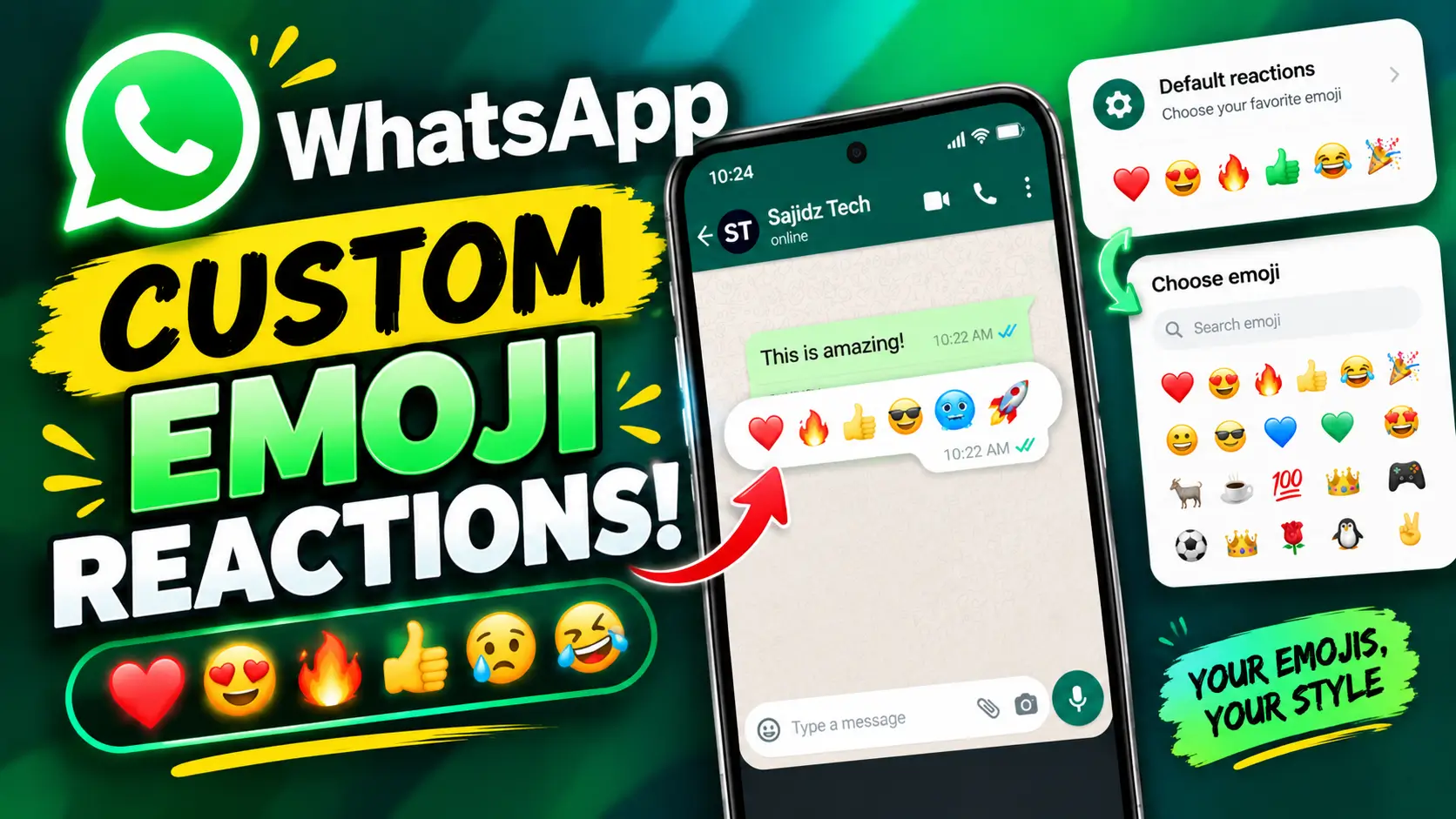
WhatsApp Custom Emoji Reactions: How to Customize Your Default Reactions in 2026
WhatsApp is adding more ways to personalize how you react to messages. If you use message reactions regularly, you may soon be able to customize the emojis that appear as your quick reaction options and choose the emojis you use most often.
In this guide, I’ll show you how WhatsApp custom emoji reactions work, where to find the reaction customization option, how to choose your favorite emojis, and how to use them when replying to messages.
I’ve also included a video tutorial below so you can see the feature in action.
Watch the video: WhatsApp Just Added Custom Emoji Reactions! Here’s How It Works
What Are WhatsApp Custom Emoji Reactions?
WhatsApp message reactions let you respond to a message using an emoji instead of typing a reply. This is useful when you want to quickly show that you like something, agree with someone, find something funny, or simply acknowledge a message.
WhatsApp already allows users to react to messages with emojis. According to the official WhatsApp Help Center, you can select one of the displayed reaction emojis or use the + option to choose another emoji from the emoji keyboard. You can also change or remove a reaction later.
The new customization experience makes the quick reaction area more useful because you can choose emojis that match the way you normally communicate.
How to Customize WhatsApp Reaction Emojis
If the custom reaction option is available on your WhatsApp account, you can use it to personalize your quick reaction emojis.
The exact menu may look slightly different depending on your Android or iPhone, WhatsApp version, and whether the feature has reached your account.
Step 1: Open WhatsApp
First, open the latest version of the WhatsApp app on your Android phone or iPhone.
If you don’t see the customization option, check your device’s app store and make sure WhatsApp is updated to the latest available version.
Step 2: Find the Reaction Settings
Open a WhatsApp conversation and bring up the message reaction options. If the new feature is available on your account, you should see the option that allows you to customize the quick reaction emojis.
From there, you can access the available emoji selection and choose the reactions you want to keep easily accessible.
Step 3: Choose Your Favorite Emojis
Now select the emojis you use most often.
For example, you might want to keep emojis such as:
- 😍 Love or appreciation
- 😂 Something funny
- 🔥 Something impressive or exciting
- 👍 Agreement or acknowledgment
- ❤️ Support or affection
- 😮 Surprise
You can choose the emojis that make the most sense for the way you communicate. The idea is to make your most-used reactions easier to access instead of searching through the complete emoji list every time.
Step 4: Save Your Reaction Choices
After selecting your preferred emojis, save or confirm your choices if WhatsApp displays a confirmation option.
Your customized reaction selection should then be available when you open the message reaction interface.
How to Use Your Custom WhatsApp Reactions
Once you’ve customized your reaction emojis, using them is simple.
- Open a WhatsApp individual or group chat.
- Find the message you want to react to.
- Tap and hold the message.
- Choose one of your available reaction emojis.
- Your reaction will be added to the message.
WhatsApp’s official Help Center confirms that you can react to messages in individual chats, group chats, and communities. You can also change your reaction later by selecting a different emoji.
Remember that WhatsApp currently allows one reaction per message from each user. If you select another reaction, your previous reaction is replaced.
Can You Use Any Emoji for a WhatsApp Reaction?
WhatsApp gives you access to a much larger emoji selection than just the quick reaction emojis shown around a message.
When reacting to a message, you can use the displayed emoji options or select the + button to choose another emoji from your keyboard. This means you aren’t restricted to only the small set of emojis shown in the initial reaction menu.
The custom reaction feature is particularly useful if you frequently use specific emojis and want them to be easier to reach.
Why WhatsApp Custom Reactions Are Useful
Message reactions are designed to make conversations faster. Instead of typing a complete response to every message, you can communicate your response with a single emoji.
Customizing your quick reactions can make this even more convenient.
1. Faster Replies
If you frequently react with the same emojis, having them readily available can save time.
2. More Personal Conversations
Everyone communicates differently. Some people use ❤️ and 😍 frequently, while others prefer 😂, 🔥, 👀, or 🙌. Custom reactions let you choose emojis that better match your communication style.
3. Easier Message Acknowledgment
Sometimes you don’t need to type a response. A quick reaction can let someone know you’ve seen their message or understood what they said.
4. Better Emoji Accessibility
If there are particular emojis you use repeatedly, having them easier to access means you won’t have to search through the full emoji keyboard as often.
What If You Don’t See the Custom Reaction Option?
Don’t worry if the option isn’t available on your WhatsApp account yet.
WhatsApp frequently introduces features gradually, which means two users can sometimes have different features available even when both are using relatively recent versions of the app.
Try these steps:
- Update WhatsApp from the official Google Play Store or Apple App Store.
- Restart WhatsApp after updating.
- Check the reaction options inside a chat again.
- Make sure you’re using the official WhatsApp application.
- Wait for the feature to become available if it has not reached your account yet.
Feature availability can also vary by device, platform, account, and rollout stage.
WhatsApp Is Adding More Ways to Personalize Chats
Custom emoji reactions are part of a broader trend of WhatsApp adding more personalization features.
For example, WhatsApp has introduced different ways to customize the experience, including chat themes and other visual customization options. Meta has also continued adding features that make WhatsApp more expressive and useful for everyday conversations.
If you’re interested in customizing your WhatsApp experience even further, check out our guide on how to change the WhatsApp app icon and theme.
You can also read our guide on WhatsApp Chat Lock and Secret Code if you’re more interested in privacy and protecting specific conversations.
Frequently Asked Questions
Can I customize WhatsApp reaction emojis?
WhatsApp supports choosing emojis beyond the initial quick reaction options, and a newer customization experience can make your preferred reaction emojis easier to access. However, the exact customization option may not be available to every account yet.
How many emojis can I use as WhatsApp reactions?
You can choose from the available reaction options and use the + option to select another emoji. WhatsApp also limits each user to one reaction per message.
Why don’t I have custom WhatsApp reactions?
The feature may not have reached your account yet. Update WhatsApp to the latest version and check again later. WhatsApp features can be rolled out gradually.
Can I change my WhatsApp reaction after sending it?
Yes. WhatsApp allows you to change your reaction by selecting a different emoji. You can also remove your reaction.
Do WhatsApp reactions notify the other person?
Yes. When you add a reaction to a message, the sender of that message can receive a reaction notification, depending on their notification settings.
Final Thoughts
WhatsApp custom emoji reactions are a small but useful improvement for people who frequently use message reactions.
Instead of relying only on the default reaction emojis, you can choose emojis that better match the way you communicate and make your most-used reactions easier to access.
If you don’t have the feature yet, make sure WhatsApp is updated and check again later. The rollout may not happen for every account at the same time.
Want to see exactly how the feature works? Watch the Sajidz Tech YouTube tutorial and follow the steps shown in the video.
For more WhatsApp tips, tricks, hidden features, updates, AI tools, and practical technology tutorials, keep visiting Sajidz Tech.




Beşiktaş Termal Kamera ile Su Kaçağı Tespiti
September 27, 2026
Beşiktaş Termal Kamera ile Su Kaçağı Tespiti Klozet altı kaçağını termal kamerayla gösterdiler. Gözümle görünce ikna oldum. https://www.regalogh.com/?p=1331
Beşiktaş En İyi Su Kaçağı Tespiti Firması
October 3, 2026
Beşiktaş En İyi Su Kaçağı Tespiti Firması Makul fiyata kaliteli hizmet, tam aradığım buydu. https://xuantruongretreat.com/?p=2132
Beşiktaş Duvar İçi Su Kaçağı Tespiti
October 4, 2026
Beşiktaş Duvar İçi Su Kaçağı Tespiti Noktasal tespit doğru çıktı. https://lrxpressway.com/?p=343