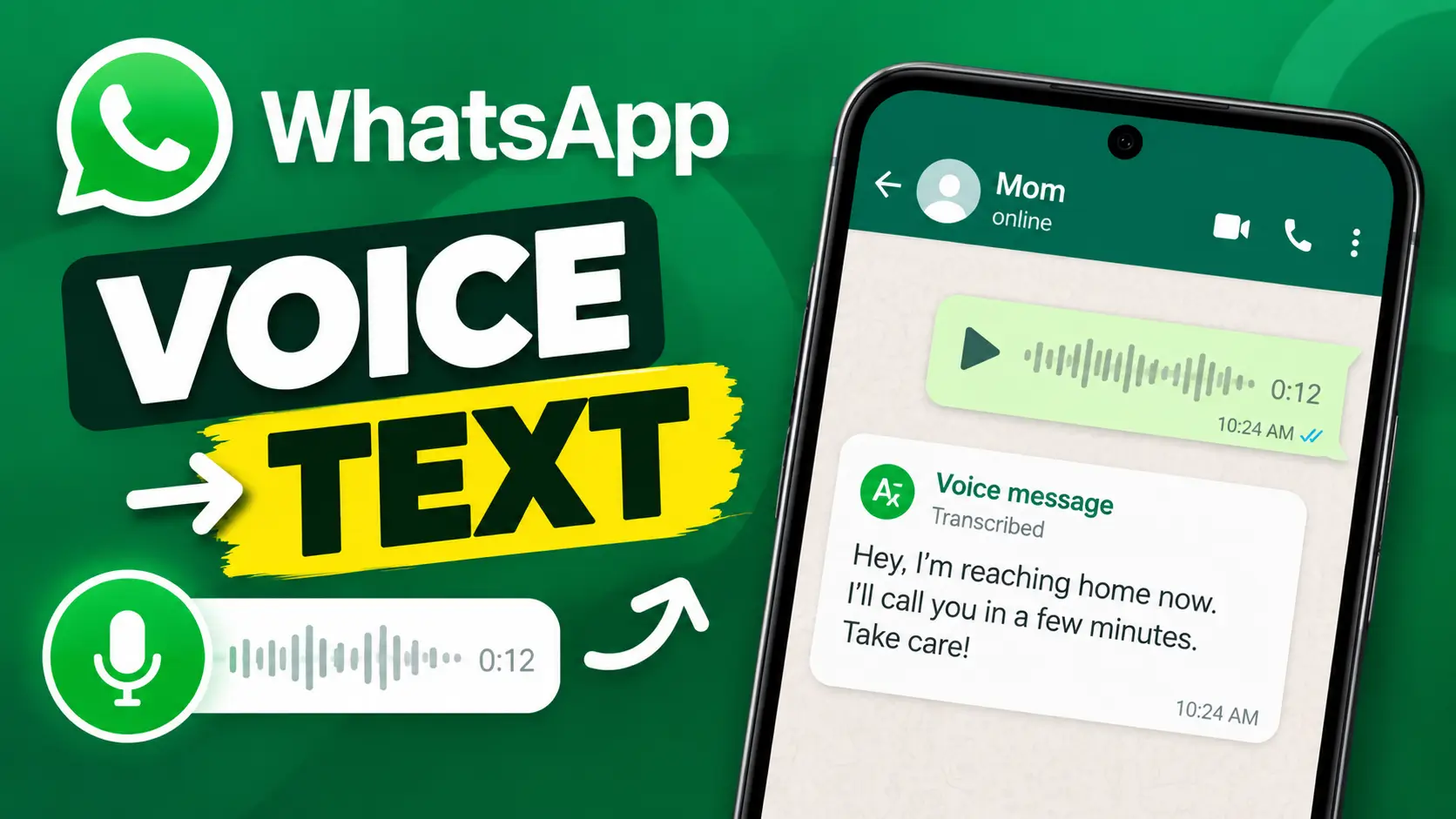
How to Transcribe WhatsApp Voice Messages Into Text in 2026: The Ultimate Easy Guide
Want to read a WhatsApp voice message instead of listening to it? Learning how to transcribe WhatsApp voice messages can make it much easier to understand audio when you’re busy, in a quiet place, or simply prefer reading text.
WhatsApp has a built-in voice message transcription feature that can convert voice messages into written text. In this guide, we’ll show you how to transcribe WhatsApp voice messages, how to enable voice message transcripts, how to select your language, and what to do if the transcription option isn’t available on your phone.
What Is WhatsApp Voice Message Transcription?
WhatsApp voice message transcription allows you to convert a voice message into written text directly inside WhatsApp. Instead of playing the entire recording, you can use the transcript to quickly read what was said.
This feature can be especially useful when you’re at work, in a meeting, on public transportation, or somewhere you cannot easily listen to an audio message.
If you’ve been searching for how to transcribe WhatsApp voice messages, you don’t necessarily need a separate audio-to-text application. WhatsApp provides a built-in transcription feature for supported devices and languages.
How to Turn On WhatsApp Voice Message Transcripts
Before you can learn how to transcribe WhatsApp voice messages, you first need to enable voice message transcripts in WhatsApp settings.
Follow these steps:
- Open WhatsApp on your phone.
- Open Settings.
- Tap Chats.
- Look for Voice message transcripts.
- Turn on the voice message transcription feature.
- Select the language you want WhatsApp to use for transcription.
Once the feature is enabled, you can start converting supported WhatsApp voice messages into text.
How to Transcribe WhatsApp Voice Messages Into Text
Now let’s look at how to transcribe WhatsApp voice messages after enabling the feature.
- Open WhatsApp.
- Open the chat containing the voice message.
- Find the voice message you want to convert into text.
- Press and hold the voice message.
- Select Transcribe.
- Wait for WhatsApp to process the voice message.
- The text transcript will appear with the voice message.
That’s it. You can now read the voice message without listening to the entire recording.
This is one of the easiest ways to convert WhatsApp voice messages to text without manually uploading the audio to another transcription service.
How to Choose the Transcription Language
The language selected for voice message transcripts is important because WhatsApp needs to know which language is being spoken.
To select your language:
- Open WhatsApp.
- Go to Settings.
- Tap Chats.
- Open Voice message transcripts.
- Select the appropriate transcription language.
If the language you select doesn’t match the language spoken in the voice message, the resulting transcript may not be accurate.
Why Can’t I See the Transcribe Option on WhatsApp?
If you’re trying to figure out how to transcribe WhatsApp voice messages but cannot find the Transcribe option, the feature may not currently be available on your device or account.
Try these solutions:
- Update WhatsApp to the latest available version.
- Go to Settings → Chats and check for Voice message transcripts.
- Make sure you have selected a supported language.
- Restart WhatsApp after updating the application.
- Check again later if the feature isn’t currently available.
WhatsApp notes that voice message transcripts may only be available on certain devices and may not yet be available to everyone.
Why Is My WhatsApp Voice Transcript Incorrect?
WhatsApp voice transcription isn’t perfect. The quality of the transcript can depend on the recording, the language selected, and the amount of background noise.
For example, transcription may be less accurate when:
- The selected language doesn’t match the spoken language.
- The voice recording contains background noise.
- The person speaks very quickly.
- The audio quality is poor.
- Several people are talking at the same time.
If you’re using WhatsApp voice message transcription for important information, it’s a good idea to compare the transcript with the original voice message.
Is WhatsApp Voice Message Transcription Private?
If you’re concerned about privacy while using WhatsApp voice message transcription, WhatsApp says that transcripts are generated on your device.
According to WhatsApp, it cannot hear your voice messages or read the transcripts generated from them.
You can read more about the feature in WhatsApp’s official announcement:
Introducing Voice Message Transcripts – WhatsApp
Can You Convert WhatsApp Audio to Text Without Another App?
Yes, when the built-in WhatsApp voice message transcription feature is available on your device, you can convert supported voice messages directly inside WhatsApp.
This means you don’t have to download a separate application just to transcribe WhatsApp voice messages.
Simply enable voice message transcripts, choose the appropriate language, and use the Transcribe option on a voice message.
Quick Steps: How to Transcribe WhatsApp Voice Messages
Here is the entire process in a few simple steps:
- Open WhatsApp.
- Go to Settings → Chats.
- Enable Voice message transcripts.
- Select your language.
- Open a WhatsApp conversation.
- Press and hold a voice message.
- Tap Transcribe.
- Read the generated text.
Once you’ve enabled the feature, you can use these steps whenever you need to transcribe a WhatsApp voice message.
Other Useful WhatsApp Tutorials
If you’re interested in more WhatsApp tips and tutorials, check out these useful guides from Sajidz Tech:
- How to Create a WhatsApp Channel in 2026
- Chat Lock for WhatsApp Secret Code: How to Lock & Hide Chats
- How to Change WhatsApp Number Without Losing Chats
Watch the WhatsApp Voice Transcription Tutorial
If you prefer a visual tutorial, watch the Sajidz Tech video to see exactly how to enable and use WhatsApp voice message transcription.
Watch WhatsApp tutorials on Sajidz Tech YouTube
Final Thoughts
WhatsApp voice message transcription is a useful feature for anyone who prefers reading messages instead of listening to them. Once the feature is available on your device, you can quickly convert supported voice messages into text directly inside WhatsApp.
If you were searching for how to transcribe WhatsApp voice messages, the process is simple: enable Voice message transcripts from WhatsApp settings, select your language, open a voice message, and tap Transcribe.
If you don’t see the option yet, make sure WhatsApp is updated and check again later because availability can vary depending on your device and account.
Official WhatsApp Resources
For the latest information about WhatsApp voice message transcripts, you can also check the official WhatsApp resources below:





leave a comment