How to Remove Image Background for Free: 3 Easy Ways in 2026
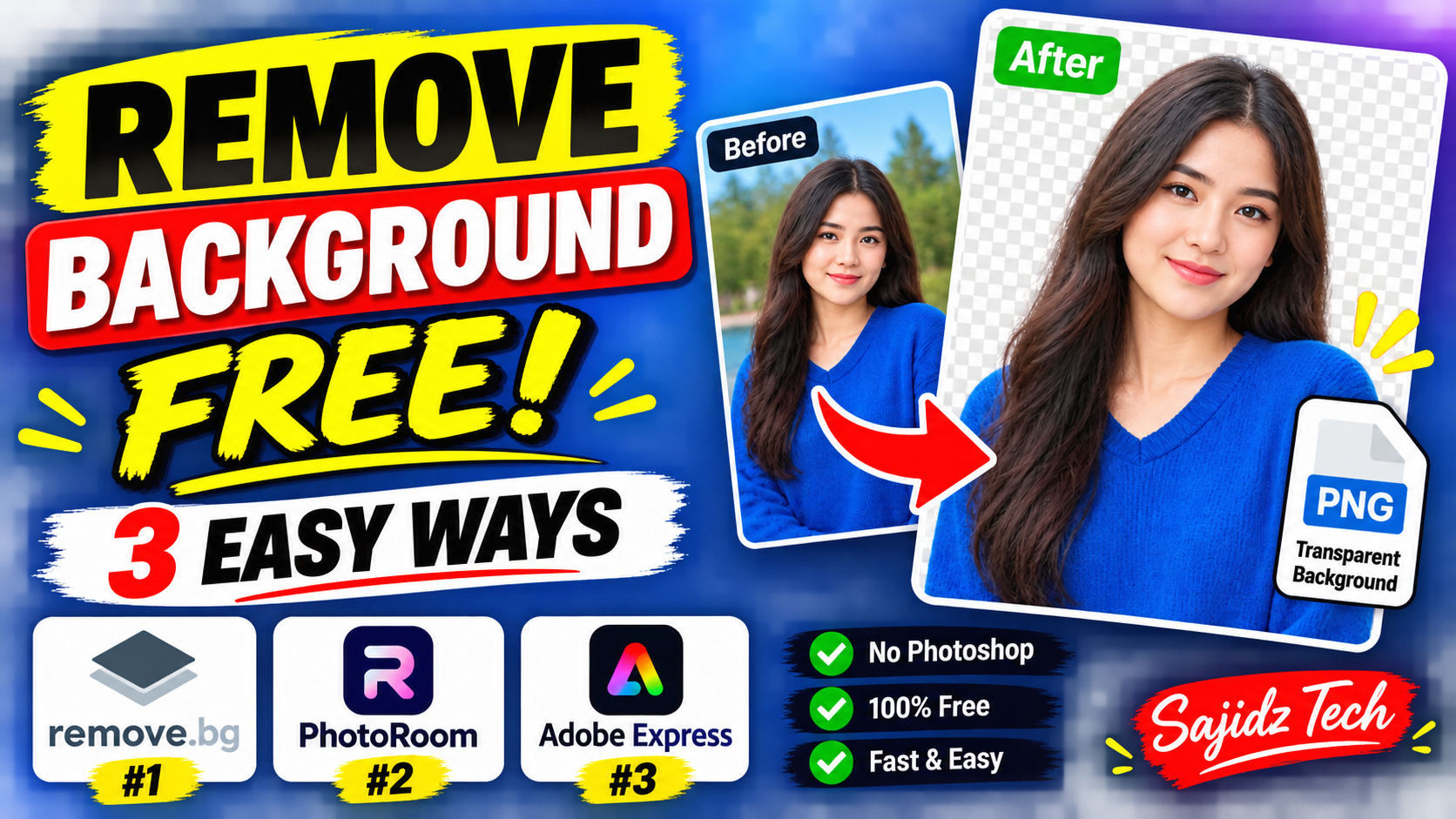
How to Remove Image Background for Free: 3 Easy Ways in 2026
-
11Views
-
1st September, 2026
Want to know how to remove image background without using Photoshop or complicated photo-editing software? You can remove the background from an image in just a few clicks using free online tools.
Whether you need a transparent PNG for a website, product photo, YouTube thumbnail, social media design, presentation, or profile picture, there are several simple tools that can automatically detect the subject and remove the background for you. And this article has been sponsored by Sajidz Tech
In this guide, I’ll show you 3 easy ways to how to remove image background for free. You don’t need advanced editing skills, and you can complete the process directly from your web browser.
Table of Contents
- What Does Removing an Image Background Mean?
- Method 1: Remove Image Background with remove.bg
- Method 2: Remove Image Background with Adobe Express
- Method 3: Remove Image Background with Canva
- How to Save an Image With a Transparent Background
- Which Background Remover Should You Use?
- Tips for Better Background Removal
- Final Thoughts
What Does Removing an Image Background Mean?
Removing an image background means separating the main subject from the rest of the image and deleting the unwanted background.
For example, imagine you have a photo of a person standing in front of a wall. A background removal tool can detect the person and remove the wall, leaving only the person.
The result can then be saved with a transparent background, usually as a PNG file.
This is particularly useful for:
- Product photography
- YouTube thumbnails
- Profile pictures
- Online stores
- Website graphics
- Social media posts
- Presentations
- Logos and promotional designs
- Marketing materials
The biggest advantage of modern background-removal tools is that they can automatically identify the main subject. You don’t need to manually trace around a person or object using Photoshop’s selection tools.
Why Background Removal Is Useful for Websites
Images with clean or transparent backgrounds can be especially useful when creating modern website layouts. For example, a product image, profile photo, illustration, or promotional graphic can be placed over different sections of a website without being restricted by the original background.
If you’re building a website and need custom layouts, responsive interfaces, or interactive frontend elements, you can also learn more about our front-end web development services.
Method 1: Remove Image Background with remove.bg
If you’re looking for the quickest answer to how to remove image background, remove.bg is one of the easiest options to try.
The service is designed specifically for automatic background removal. You upload an image, and its system automatically detects the foreground subject and removes the background.
You can visit remove.bg to try it.
Step 1: Open remove.bg
Open remove.bg in your browser.
You will see an option to upload an image. You can select an image from your computer and upload it to the service.
Step 2: Upload Your Image
Select the image you want to edit.
remove.bg will automatically process the image and identify the main subject.
Step 3: Let the Tool Remove the Background
After processing, remove.bg will show you the image with the background removed.
You can compare the original image with the result to see how accurately the subject was separated.
Step 4: Download the Result
Once you’re happy with the result, download the image.
A transparent background is particularly useful when you want to place the subject over another image, color, website section, thumbnail, or graphic design.
remove.bg specifically supports creating transparent PNG images, making it useful when you need the background to remain transparent.
Method 2: Remove Image Background with Adobe Express
Another simple way how to remove image background is Adobe Express.
Adobe Express includes a background-removal tool that automatically identifies the subject and removes the background. Adobe’s current documentation describes the process as a one-step background removal feature.
You can try the tool through Adobe Express.
Step 1: Open Adobe Express
Open Adobe Express and access the image background removal feature.
Step 2: Upload Your Image
Select the image you want to edit and upload it.
For the best results, Adobe recommends using an image where the subject has clear edges and isn’t heavily overlapped by other objects.
Step 3: Remove the Background
Adobe Express will automatically detect the main subject and remove the background.
You can then review the result and continue editing the image if necessary.
Step 4: Download a Transparent PNG
If you want a transparent background, make sure the canvas background is set to No fill and select Transparent PNG when downloading the image. Adobe’s current instructions specifically recommend this workflow for transparent images.
This makes Adobe Express useful if you don’t just want to remove the background but also want to continue designing the image afterward.
Method 3: Remove Image Background with Canva
If you already use Canva for thumbnails, presentations, social media graphics, or other designs, you can also use its background-removal feature.
Canva provides a one-click background remover that automatically separates the subject from the background. Canva currently allows users to try the background remover for free once, while continued use requires a Pro subscription.
Visit Canva’s Background Remover to try it.
Step 1: Upload Your Image
Open Canva and upload the image you want to edit.
Step 2: Select the Image
Open your image inside the Canva editor and select it.
Step 3: Use BG Remover
Find the BG Remover option in the image editing tools.
Canva will automatically detect the background and remove it.
Step 4: Download Your Image
After removing the background, you can continue editing the image or download the result.
Canva supports downloading the resulting image as a PNG with a transparent background when using the appropriate settings.
How to Save an Image With a Transparent Background
After removing the background, you may notice that the image appears on a checkerboard pattern. This usually indicates transparency in an image editor.
If you want to keep the background transparent, choose PNG rather than JPG when downloading the image.
JPG files don’t support transparent backgrounds, while PNG can preserve transparency.
A transparent PNG is useful when you want to place your subject on:
- A different background
- A YouTube thumbnail
- A website
- A presentation
- A social media graphic
- An online store product page
- A promotional banner
Which Background Remover Should You Use?
All three methods can be useful, but they are suited to slightly different situations.
| Tool | Best For | Free Usage |
|---|---|---|
| remove.bg | Quick background removal | Free option available |
| Adobe Express | Background removal plus design editing | Free plan available |
| Canva | Background removal inside designs | Free trial/use available |
If you simply want to remove a background as quickly as possible, remove.bg is a convenient choice.
If you want to remove the background and then continue creating a graphic, Adobe Express can be useful.
If you’re already designing a YouTube thumbnail, presentation, social media post, or other Canva project, Canva can be convenient because you can continue editing the image in the same workspace.
Tips for Better Background Removal
Automatic background removal works best when the subject is clearly visible. However, not every image will produce a perfect result.
Use High-Quality Images
Start with the highest-quality image you have available. Low-resolution or heavily compressed images can make it harder for automatic tools to identify edges.
Choose Images With Clear Subjects
Images where the main subject has clear edges against the background usually produce better results.
Be Careful With Hair and Fine Details
Hair, fur, transparent objects, thin wires, and other fine details can sometimes be difficult for automatic background-removal tools.
Always inspect the final result before using it in a professional design.
Use PNG When You Need Transparency
If you need the background to remain transparent, download the image as a PNG rather than JPG.
Check the Final Image
Don’t immediately use the result without checking it. Zoom in around the edges of the subject and look for missing parts, unwanted background fragments, or rough edges.
Why Remove an Image Background Without Photoshop?
Photoshop provides powerful tools for professional image editing, but you don’t always need complex software for a simple background-removal task.
Online tools can save time when you only need to isolate a person, product, car, object, or other subject from an image.
For occasional background removal, a browser-based tool can be much faster than opening a full image-editing application and manually creating a selection.
This is especially useful for beginners, students, freelancers, small businesses, content creators, and website owners.
Frequently Asked Questions
What is the easiest way to remove an image background?
Using an automatic online background-removal tool is usually the easiest approach. Tools such as remove.bg can automatically detect the subject and remove the background without requiring advanced editing skills.
Can I remove an image background for free?
Yes. There are several tools that offer free background-removal options. However, free usage limits, image resolution, and available features can vary between services.
How do I remove a background and keep it transparent?
Remove the background using a compatible image-editing tool and download the result as a transparent PNG. Make sure you don’t add a new background before exporting the image.
Can I remove an image background without Photoshop?
Yes. You don’t need Photoshop for basic background removal. Browser-based tools such as remove.bg, Adobe Express, and Canva can automatically remove backgrounds.
Which image format is best for a transparent background?
PNG is a common choice when you need transparency because it can preserve transparent areas in the image.
Final Thoughts
Learning how to remove image background doesn’t have to be complicated. With modern online tools, you can automatically remove a background in just a few clicks without learning advanced photo-editing software.
In this guide, we covered three simple options: remove.bg, Adobe Express, and Canva.
If you need a quick and straightforward background remover, start with remove.bg. If you want additional design features, Adobe Express or Canva may be more suitable depending on your workflow.
Whichever tool you choose, remember to check the edges of your subject before using the final image, especially when the original photo contains hair, fur, transparent objects, or complicated backgrounds.
Want to see these three methods in action? Watch our video tutorial on how to remove image background for free and follow along step by step.
For more practical technology tutorials, tips, and useful online tools, explore more guides on SajidzTech.
Tags:
background removal background remover free background remover free image editor how to remove background how to remove image background image editing make image background transparent photo editing png transparent background remove background from image remove background online remove background without photoshop remove bg remove image background remove image background free sajid hasan sajid tech sajidz tech transparent backgroundComments(0)
Search here
Categories
- Adobe (2)
- AI (2)
- Amazon (1)
- Android (9)
- Apps (3)
- Blockchain (1)
- Blog Template (1)
- Business (5)
- ChatGPT (2)
- eCommerce (1)
- Economy (1)
- Facebook (3)
- Freelancing (1)
- Garments Template (1)
- Google (3)
- Google Adsense (1)
- Google Map (2)
- Grok (1)
- Health (1)
- Instagram (2)
- jobs (1)
- Landing page (2)
- Location track (1)
- Messenger (4)
- Mobile review (6)
- Samsung (1)
- Smartphones (1)
- Social Media (3)
- Tech News (1)
- Tread (1)
- Uncategorized (2)
- viber (1)
- Web Development (4)
- WhatsApp (17)
- Windows (2)
- Wordpress (3)
- Xiaomi (1)
- YouTube (1)
Latest posts
- Eyer View Counter and Stats: Lightweight WordPress Post Analytics Plugin
- How to Easily Remove Unwanted Objects from Photos with AI in 2026 : The latest way you don’t know
- WhatsApp Custom Emoji Reactions | How to Change Them in 2026 : An ultimate guide you be excited to use
- WhatsApp Plus: How to Change App Icon & Theme in 2026 : You be excited to use it
- New WhatsApp Chat Themes in 2026: 5 Exciting Styles You’ll Love 🎨
Latest Posts
-

Eyer View Counter and Stats:...
By #Sajid Hasan On 14, Oct, 2026 -

How to Easily Remove Unwanted...
By #Sajid Hasan On 05, Oct, 2026 -

WhatsApp Custom Emoji Reactions |...
By #Sajid Hasan On 26, Sep, 2026 -

WhatsApp Plus: How to Change...
By #Sajid Hasan On 22, Sep, 2026 -

New WhatsApp Chat Themes in...
By #Sajid Hasan On 21, Sep, 2026
leave a comment