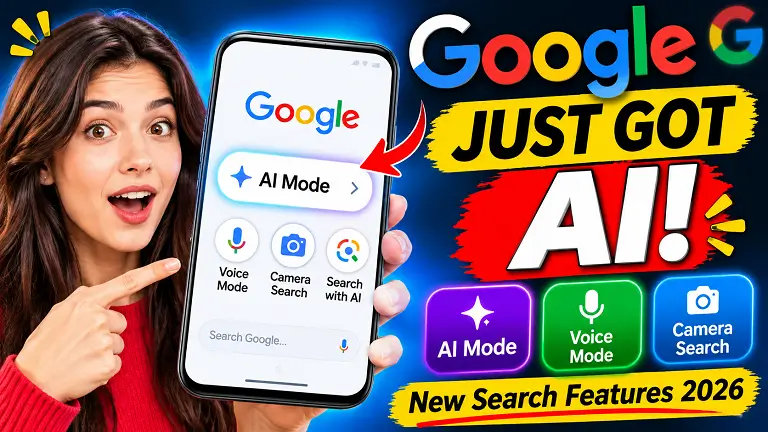
How to Use Google Search AI Mode: Master Voice & Camera Search (2026 Guide)
Searching the internet used to mean typing individual queries one by one, clicking through multiple links, and piecing together information manually. Fortunately, the search experience has evolved drastically. Google has integrated advanced conversational intelligence directly into its core platform, allowing users to leverage Google Search AI mode for seamless, multi-step queries [00:00:09]. Whether you are planning a complex family vacation, troubleshooting code, or identifying physical objects in your room, this new integration changes everything.
If you want to explore official platform announcements and guidelines regarding search updates, you can check out the Google Official Website. Additionally, to ensure your mobile environment is fully compatible, make sure your app is updated to the latest version via the Google Play Store [00:00:58].
In this comprehensive tutorial, we will break down step-by-step how to unlock and utilize Google Search AI mode, harness advanced Google voice search capabilities, and perform real-time visual analysis using your camera [00:01:20]. Let’s dive straight into the setup process.
Why the New Google Search AI Integration Matters
Traditional search engines were designed for keyword matching rather than contextual reasoning. If you wanted to plan a trip, you had to search for flights, hotels, weather conditions, and itineraries separately. By utilizing Google Search AI mode, the search engine acts as an intelligent assistant that understands conversational intent, complex constraints, and multi-layered questions in real time [00:01:46].
When you figure out how to leverage these unified tools, you eliminate redundant searching and get precise, tailored results instantly. For more insights on digital content creation, custom web solutions, and software tutorials, feel free to explore our core resources on SajidzTech as well as our detailed workflow guides on our official blog archives.
Prerequisites and Initial App Setup
Before you begin trying out these advanced features, you must ensure your device environment is fully configured and updated. Skipping these essential prerequisite steps is the number one reason users encounter missing features [00:01:05].
- Open Your App Store: Launch the Google Play Store or Apple App Store on your mobile device [00:00:58].
- Verify App Updates: Search for the official Google app and ensure it is updated to the absolute latest version [00:01:13]. AI-powered multimodal search bars roll out continuously, and older builds will not support these specific workflows.
Step-by-Step Tutorial: How to Use Google Search AI Mode
Once your application is fully updated, you are ready to explore the three primary interactive modes built into the search bar: AI text queries, voice search, and camera search [00:01:20].
Feature 1: Activating Google Search AI Mode for Complex Queries
Launch your updated Google mobile app. Tap on the dedicated AI mode toggle icon in the search interface [00:01:42]. This activates conversational intelligence, allowing you to ask complex, multi-variable questions without starting over [00:01:47].
For example, instead of searching for hotels and itineraries separately, you can type a detailed multi-part prompt into the AI search bar:
“What is the best vacation city for a trip all around the USA in December with a budget of $5,000 for six family members?” [00:02:05]
The system processes your constraints simultaneously, delivering curated recommendations complete with visual cards and structured breakdowns [00:02:26].
Feature 2: Using Google Voice Search for Natural Conversations
If you prefer speaking over typing, you can tap the microphone icon in the middle of the search bar to initiate Google voice search [00:01:31]. The AI listens dynamically and responds with spoken audio and visual data [00:03:16].
You can speak naturally to the assistant just as you would to a human guide:
“I want to go on a tour all around the USA this December. What will be the best tour city for me? I want a little bit of a natural urban place where I can go with six members of my family.” [00:03:25]
The AI will instantly vocalize its recommendation—such as suggesting San Diego, California—while detailing local attractions like Balboa Park and Torrey Pines [00:03:51].
Feature 3: Performing Visual Searches with Your Camera
Beyond text and voice, the updated application integrates advanced visual recognition (similar to Google Lens functionality) [00:04:19]. Tap the camera icon in the search bar to flip your phone’s camera toward physical objects around you [00:04:42].
Point your camera at everyday items, gadgets, or workspace hardware, and ask questions directly [00:04:50]:
“Can you please tell me the laptop model and specifications?” [00:05:02]
The system analyzes the live video feed or captured photo, identifying exact hardware models, serial lines, and technical specifications in seconds [00:05:11].
Best Practices for Smart Searching
To ensure your workflow remains efficient whenever you use Google Search AI mode, keep these expert tips in mind:
- Be Specific with Constraints: When using AI text search, include budget limits, participant counts, and location preferences in a single prompt.
- Combine Modalities: Switch effortlessly between text, voice commands, and camera scanning depending on whether you are multitasking or researching physical objects.
- Keep Your App Updated: Regular updates ensure access to the latest performance improvements and multimodal search capabilities.
Conclusion
Mastering Google Search AI mode transforms how you retrieve information on mobile devices. By combining conversational text prompts, natural Google voice search, and instant camera identification, researching complex topics has never been faster or more intuitive [00:05:37].
Now that you know the exact workflow, head over to your app, test out these new features, and let us know how your searches turned out in the comments below [00:05:55]!





leave a comment